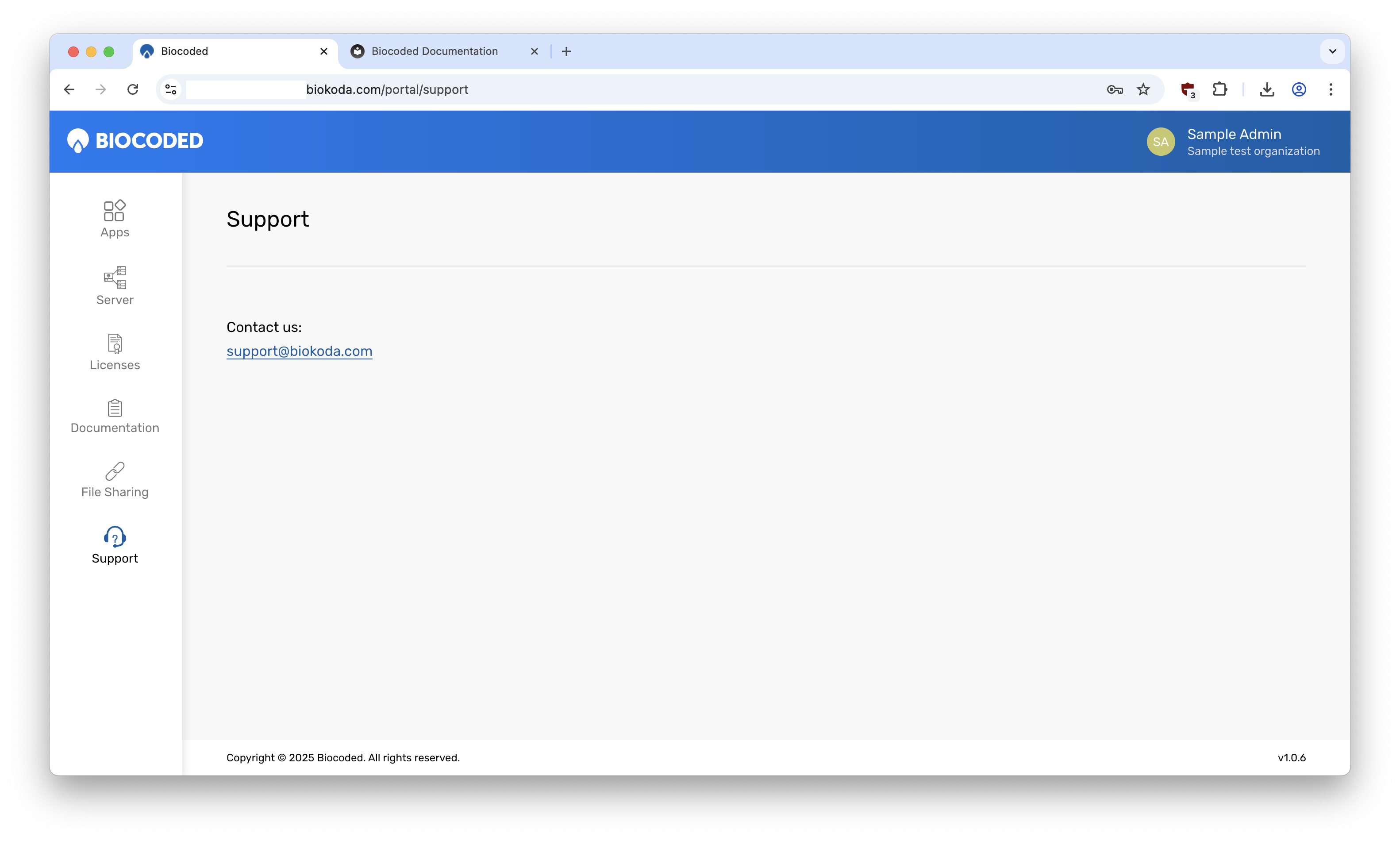
Biocoded Portal Administration Guide
Tip
By default portal web dashboard is accessible on biocoded.com/portal.
Log in
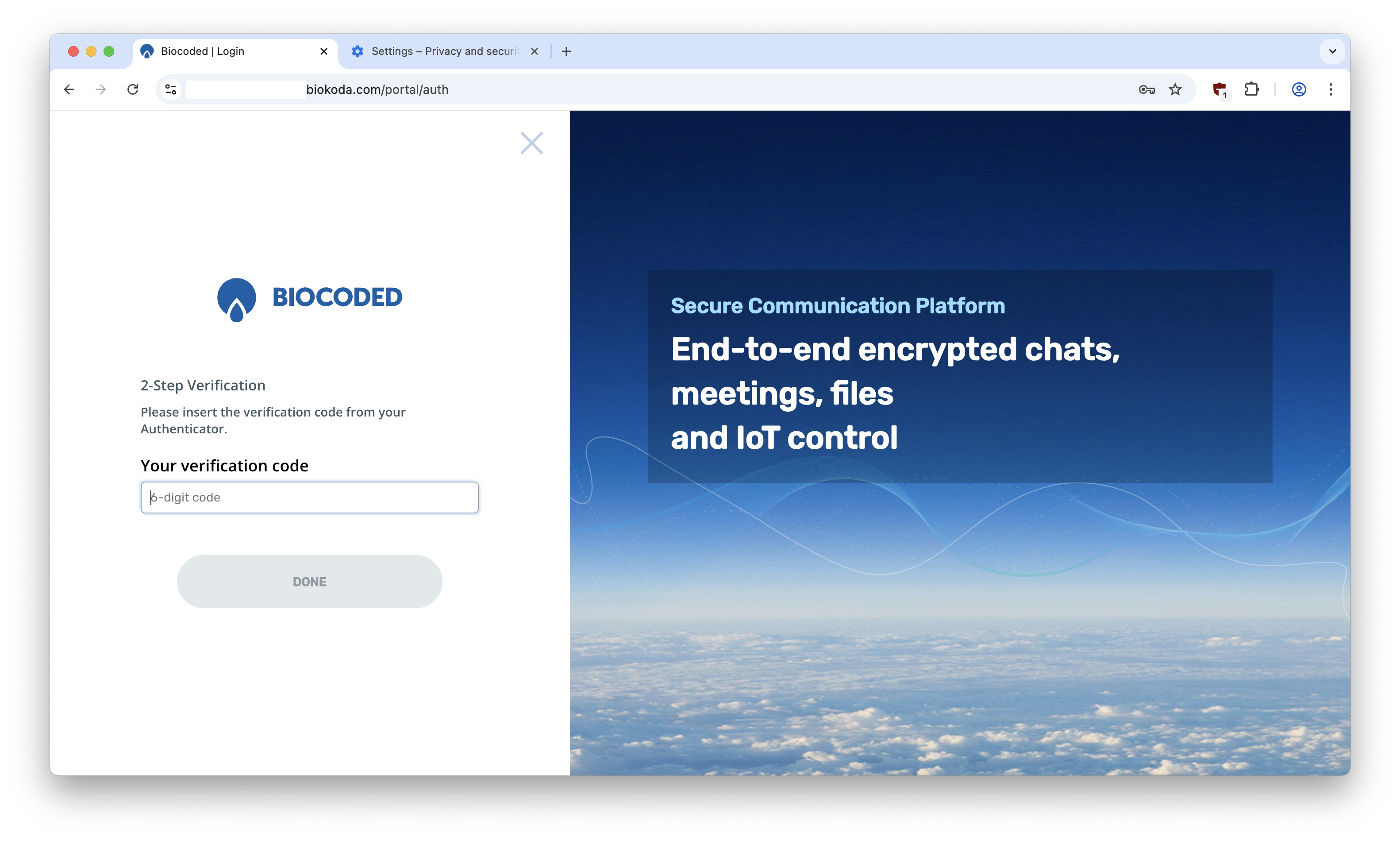
To log in, enter your administration username and password. They are provided by your system administrator along with a TOTP auth code.
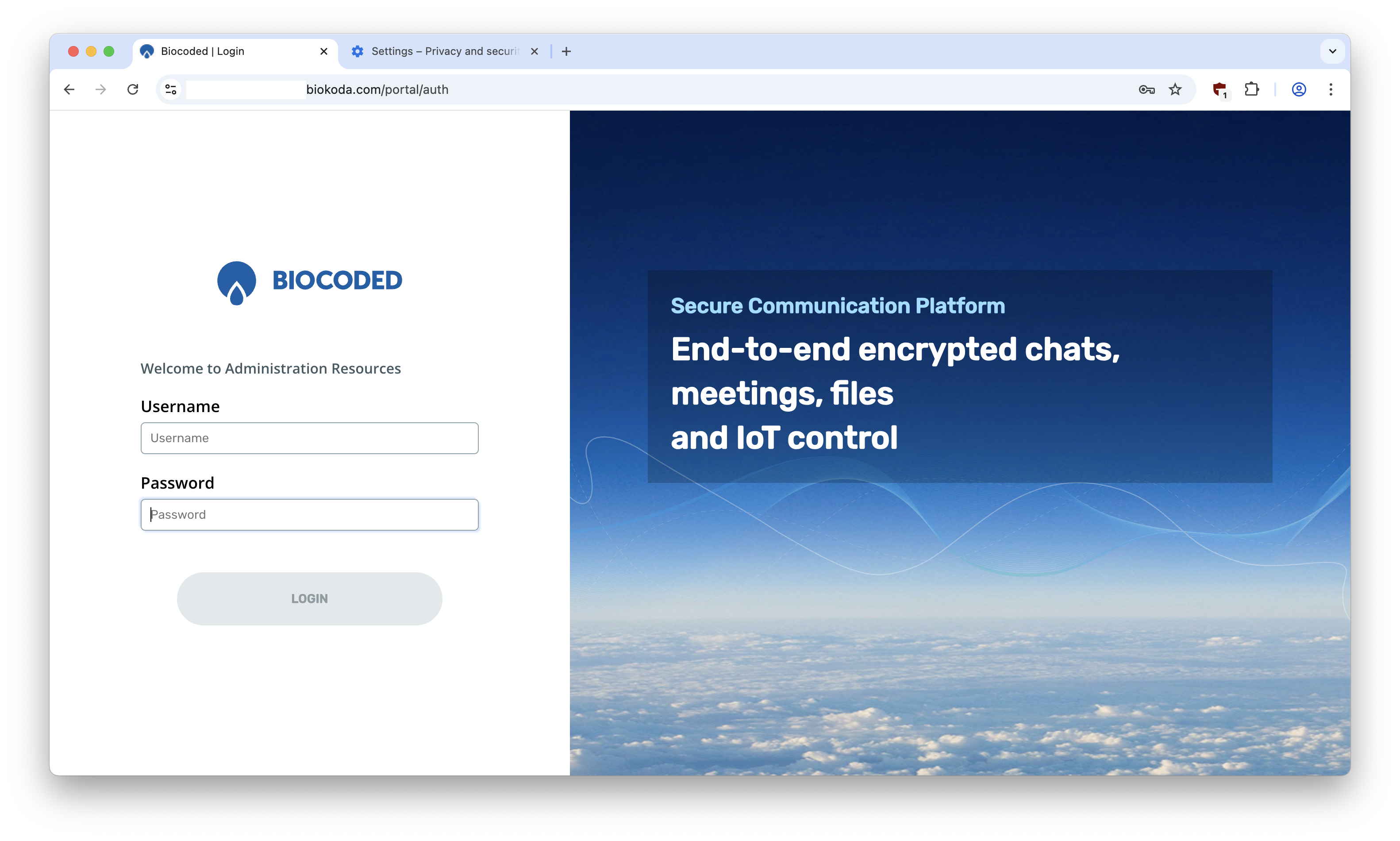
Next, enter your 6-digit authentication code generated by your chosen authenticator app.
Tip
To obtain an authentication code, enter your TOTP auth code provided by your system administrator into an authenticator application, which generates time-limited codes.
User Menu
Click on your user avatar in top right corner of the browser window to show user menu.
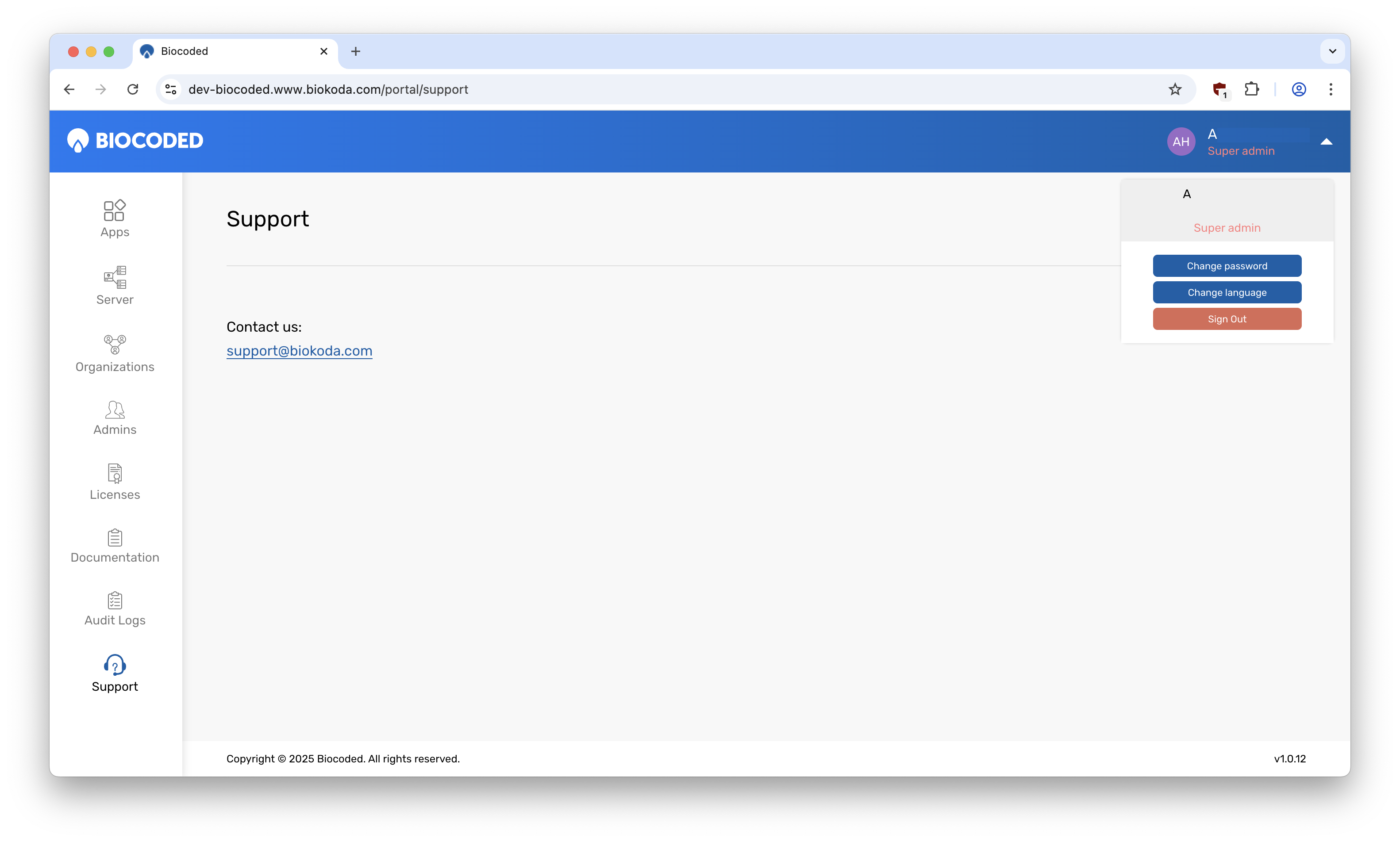
Choose between "Change password", "Change language" and "Sign out".
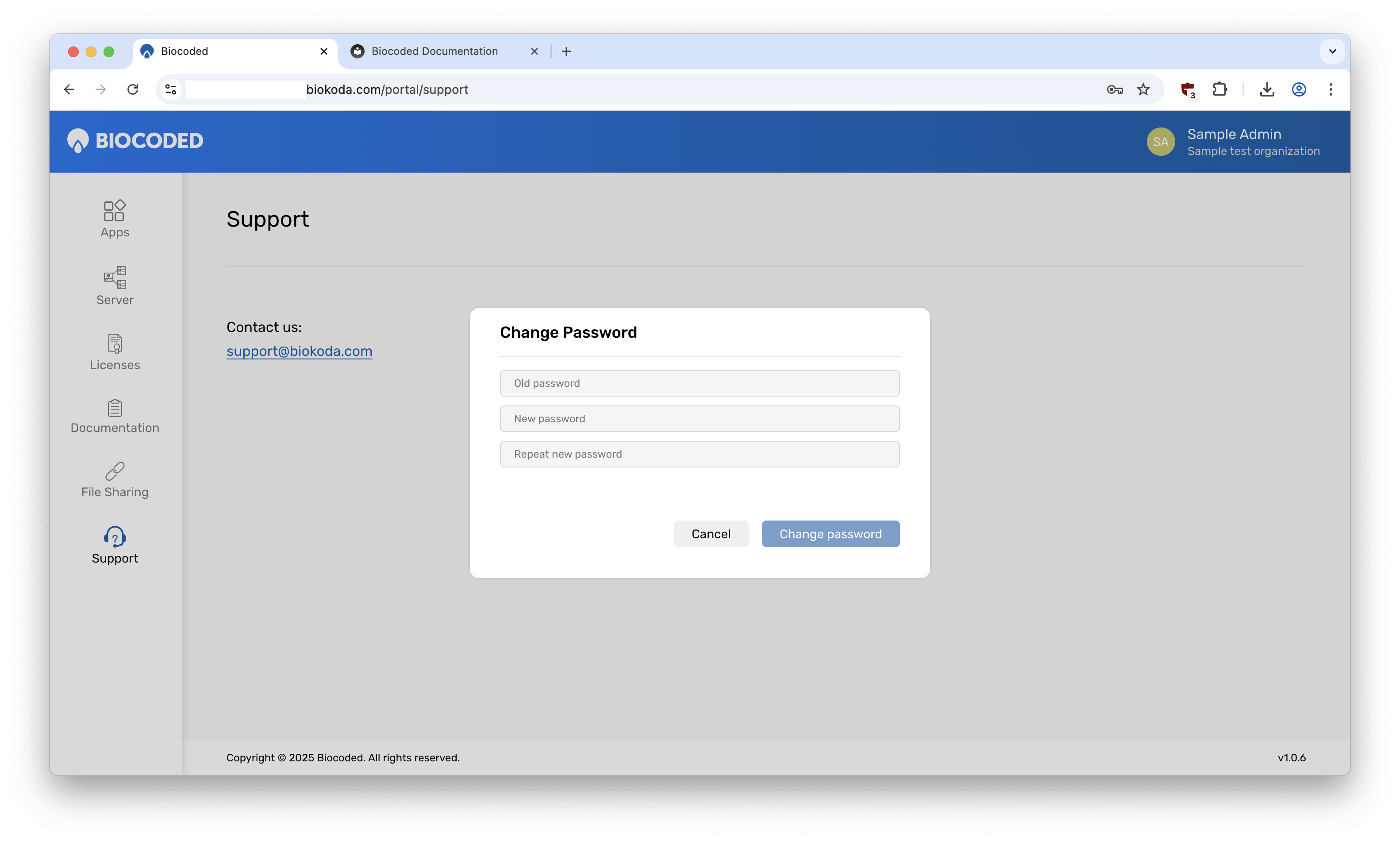
To change your password, enter your current password and then enter your new password twice.
Warning
The password must be at least eight characters long and must contain at least one uppercase letter, one number and one special character.
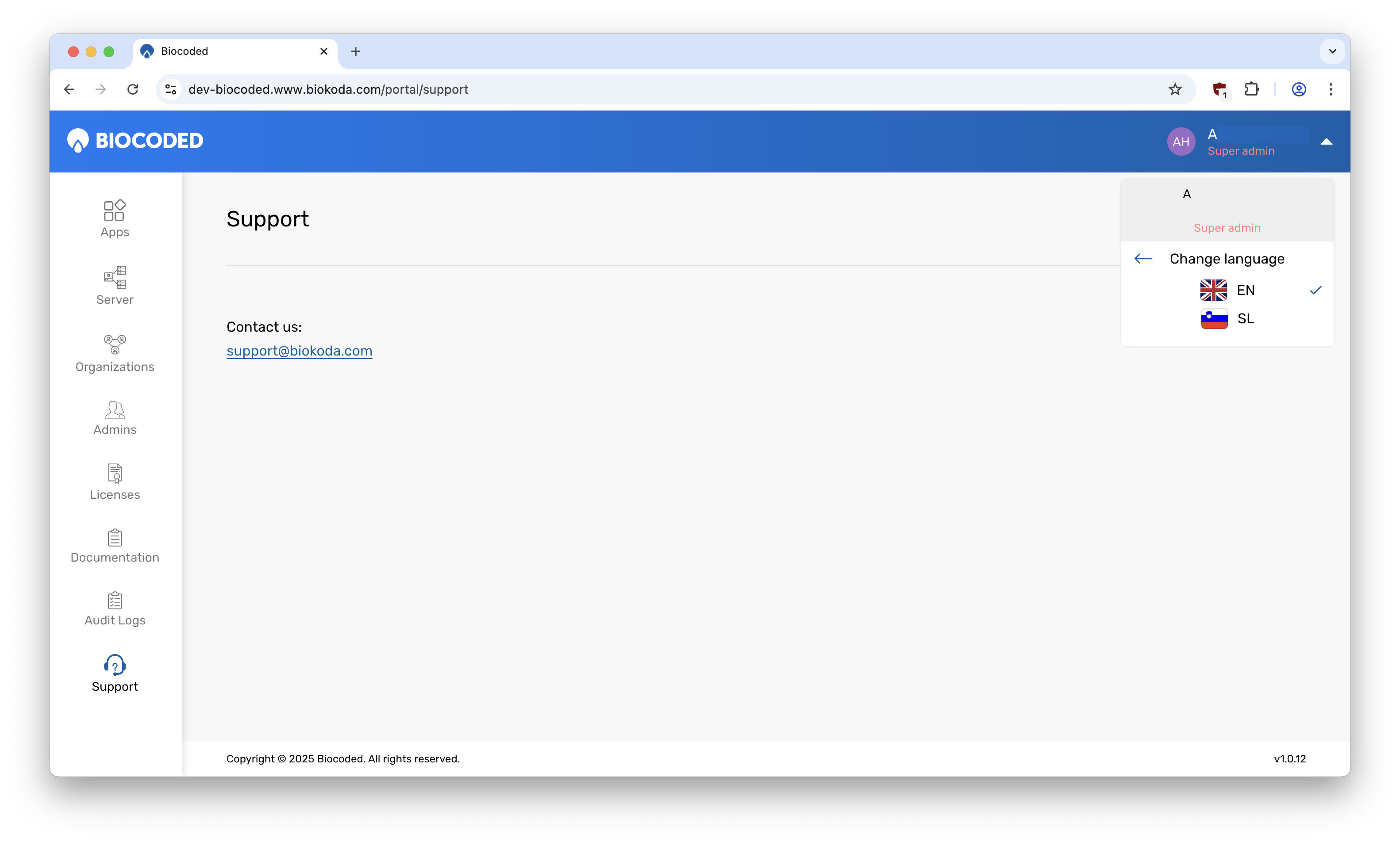
To change the language of Biocoded Portal, click on "Change language" and then select your prefered language.
Apps
To download the latest available versions of Biocoded applications, select "Apps" and then your desired platform.
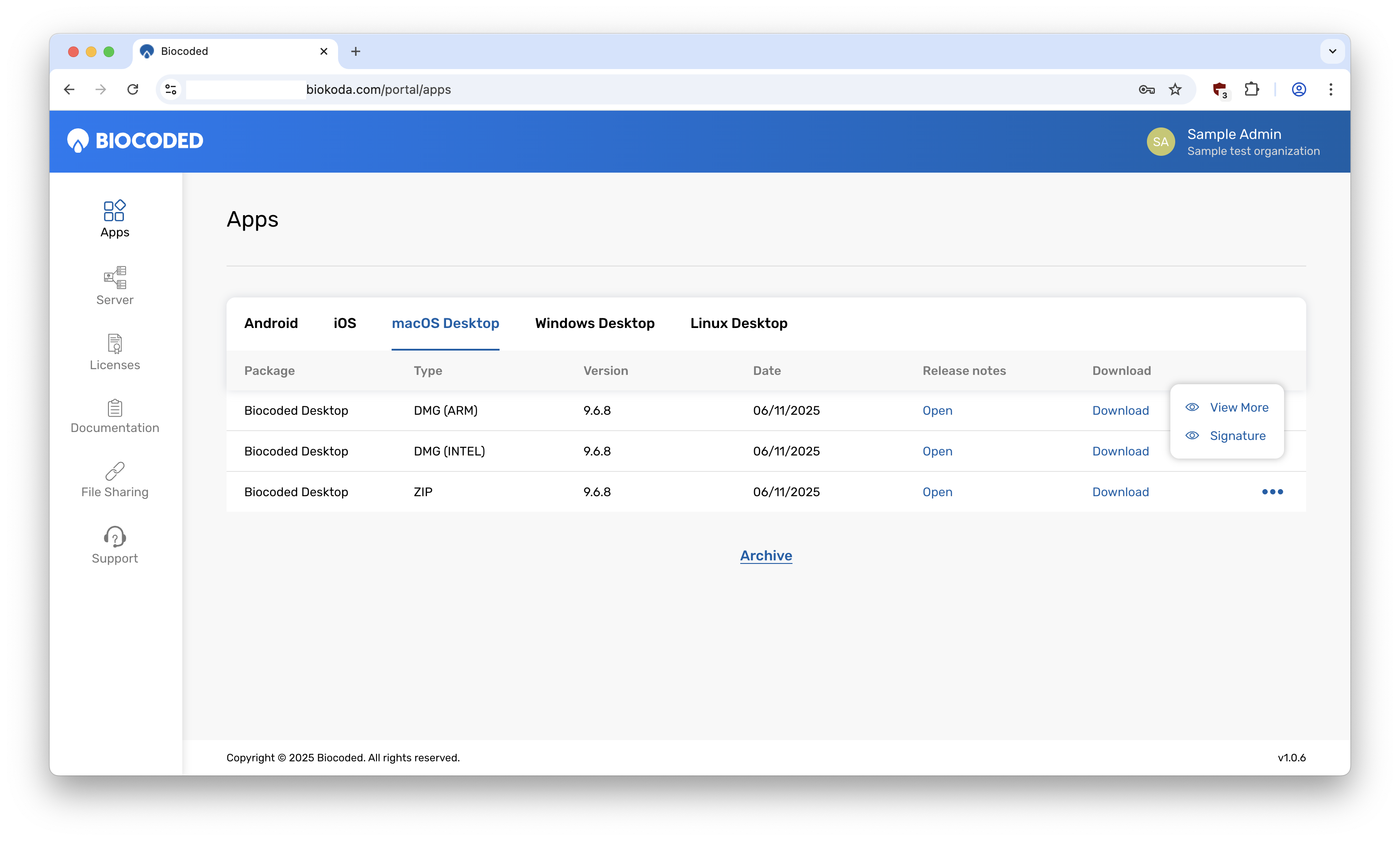
To download a version, press "Download". Press "..." to View more information about the application or to view or copy the app's signature.
To view or download older app versions, press "Archive".
Server
To download latest ActorDB, Biocoded Installer, Biocoded Server or Biocoded Tool, select "Server".
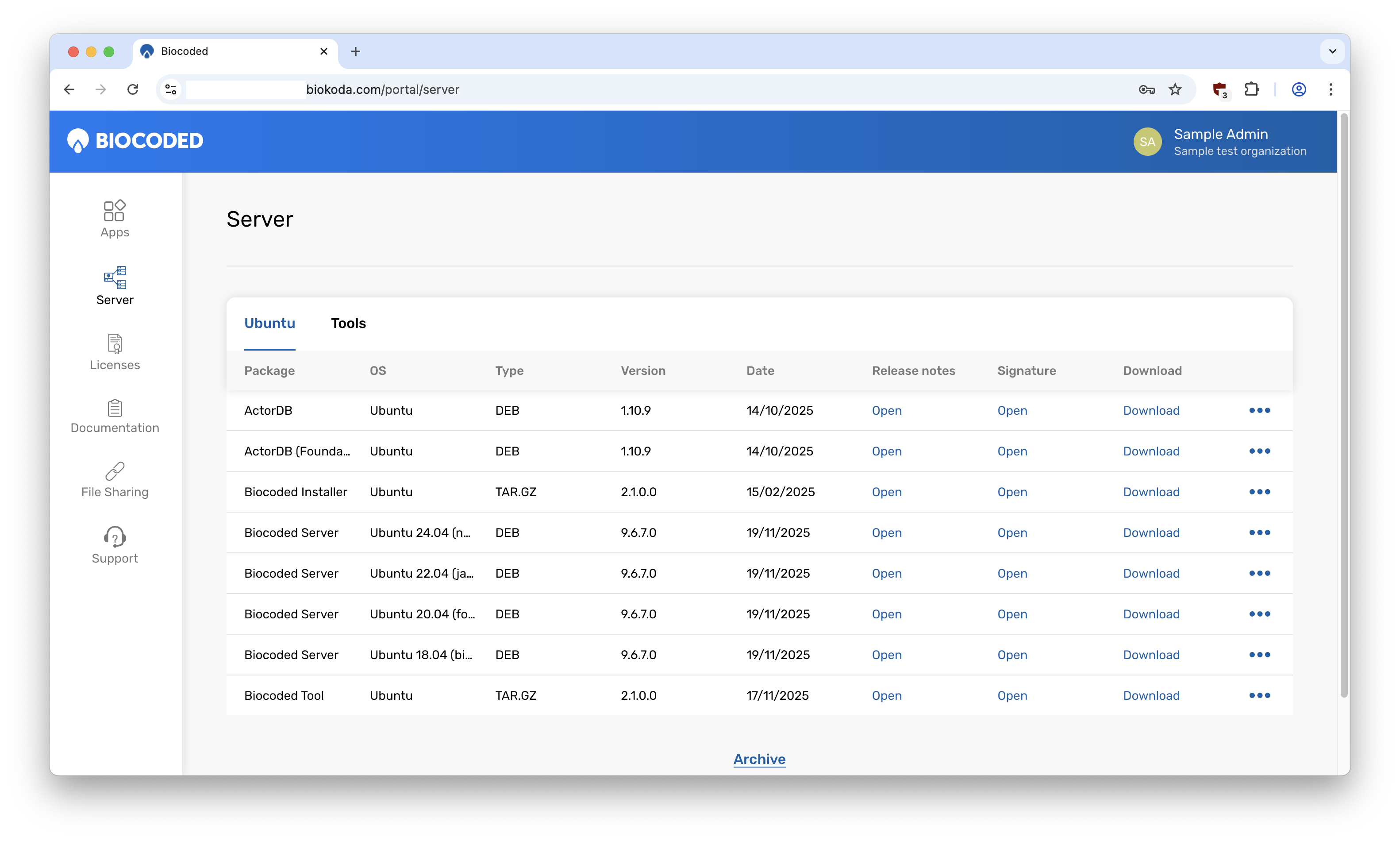
To download a version, press "Download". You can also view and copy the version's signature or view release notes. Press "..." to View more information about the version.
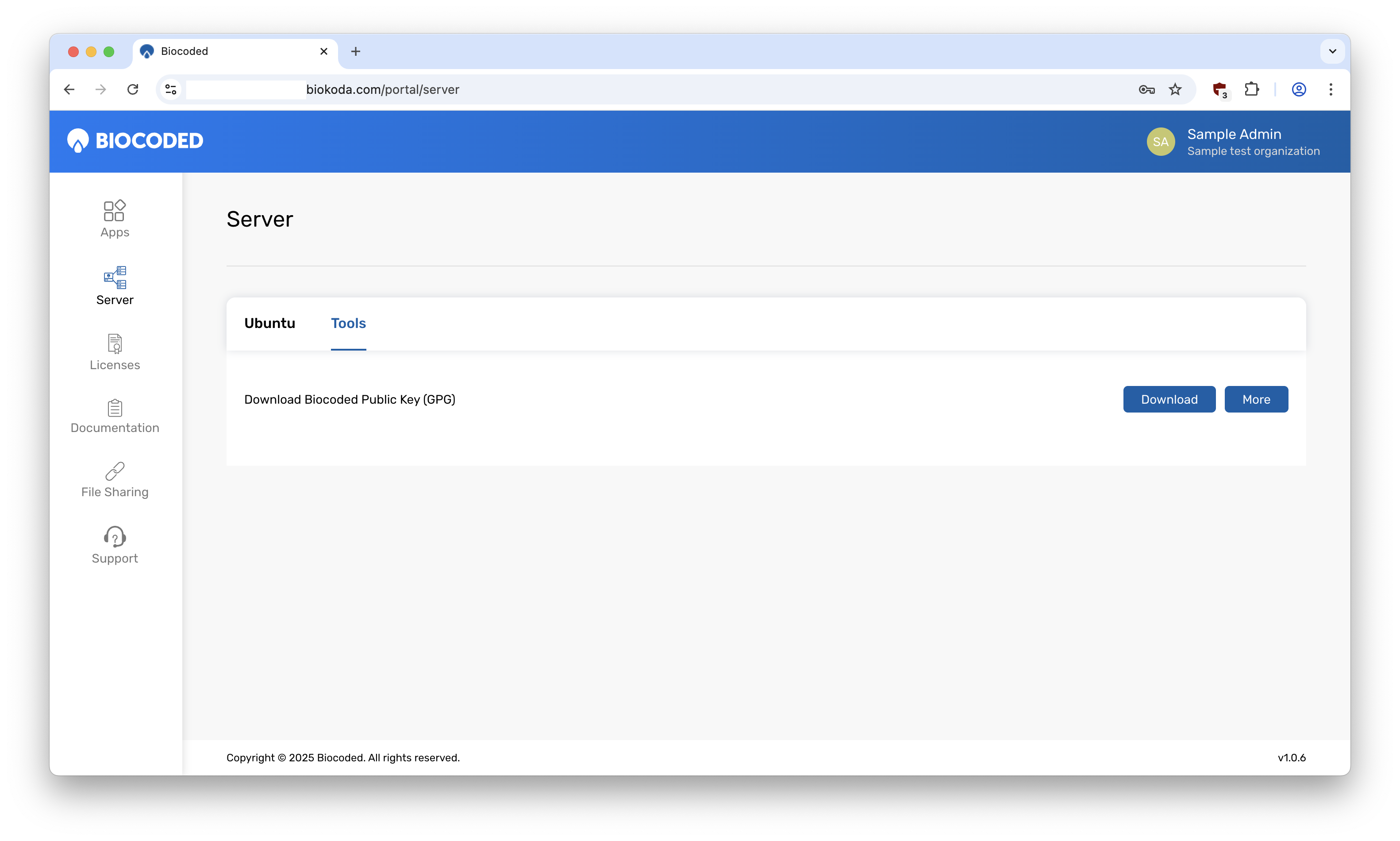
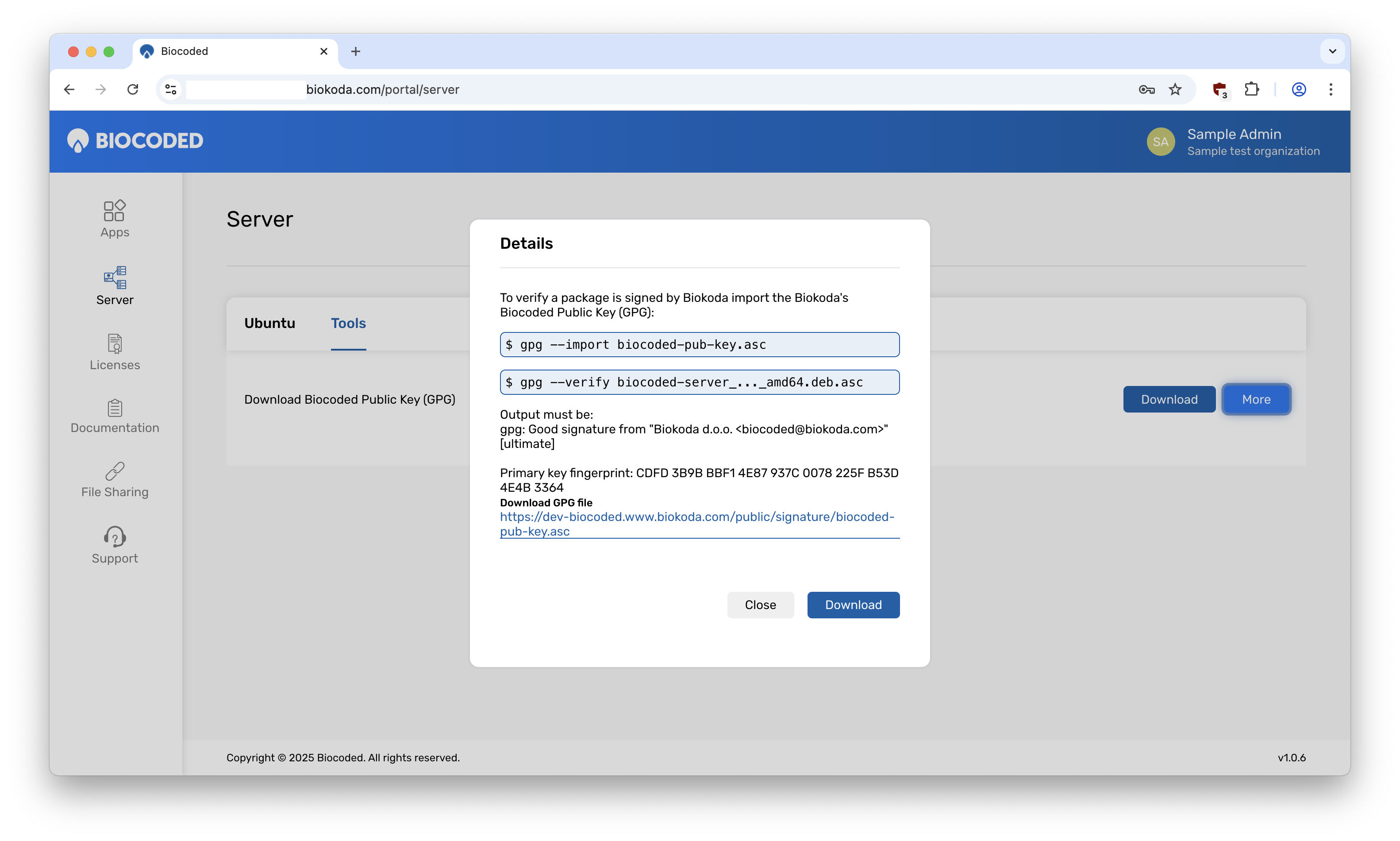
Select "Tools" to download Biocoded public key. Click on "More" to view the steps to verify public key (GPG).
Licenses
To view, add or remove licenses, select "Licenses".
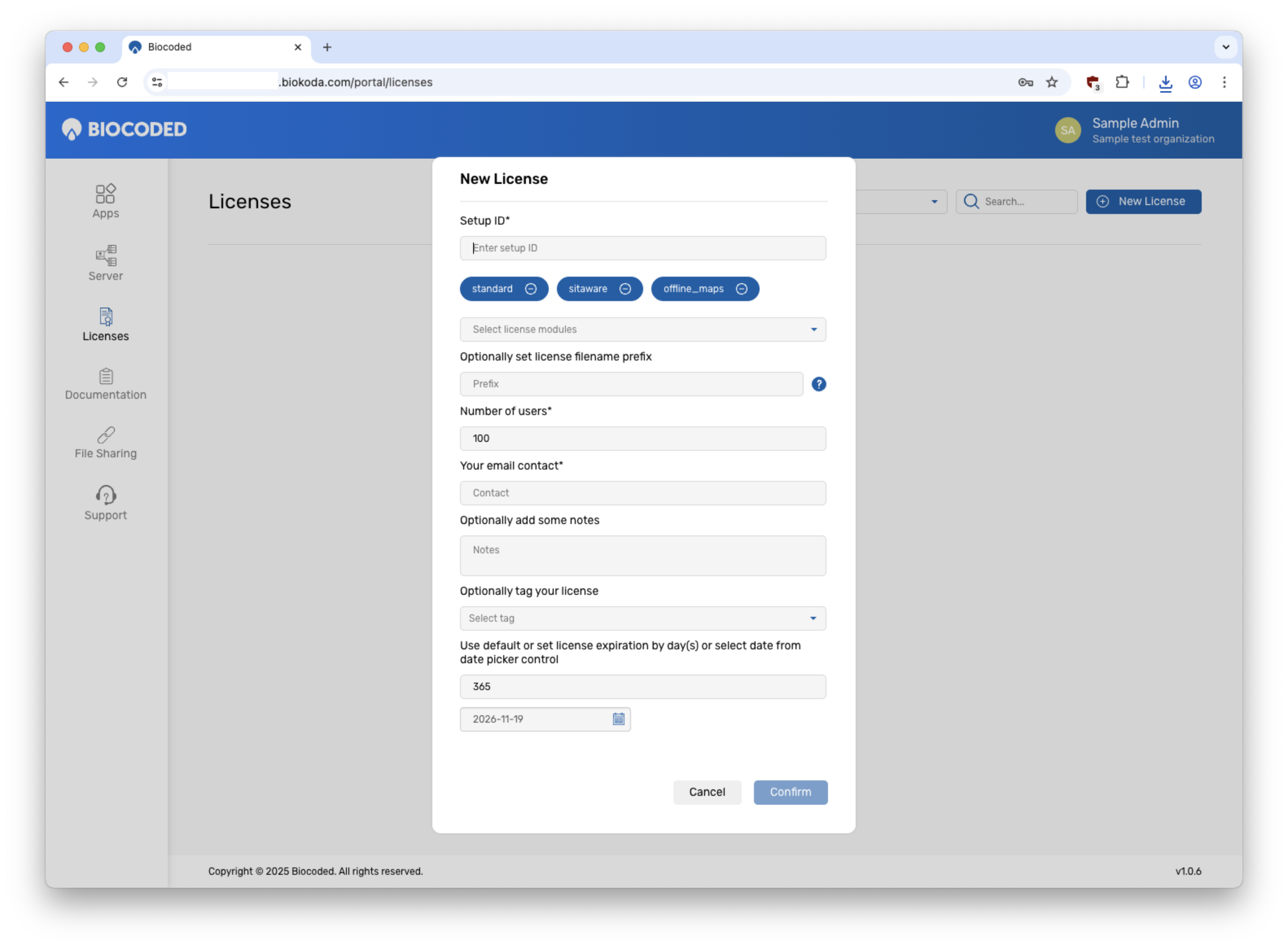
To add a new license, press "New license". Set the required data and press "Confirm".
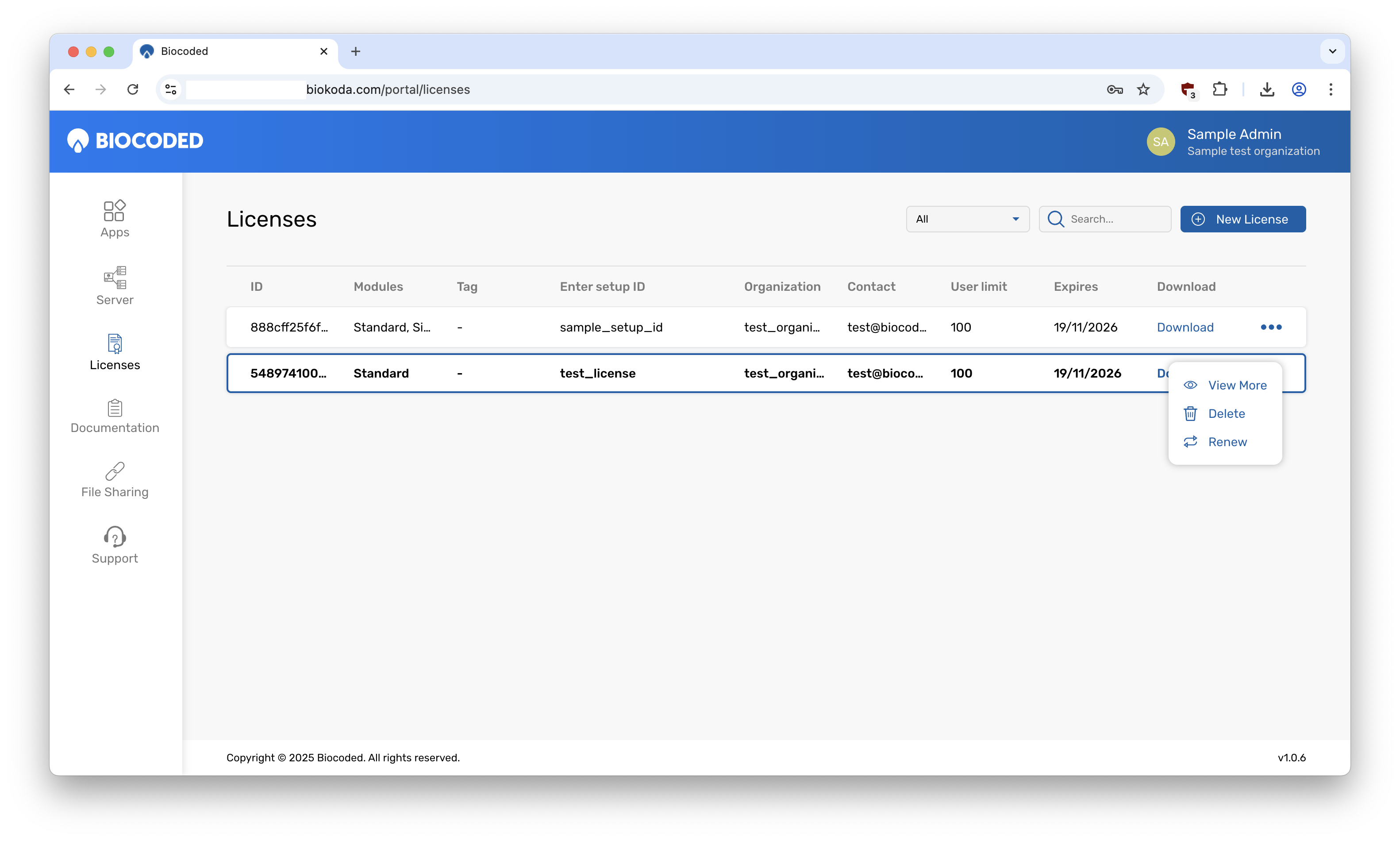
Press "..." to View more information about any existing license or to delete or renew it. When renewing, you can select license modules, change user limits or extend it's validity.
Documentation
To view Biocoded documentation, go to "Documentation". You will be redirected to biocoded.com/documentation.
File sharing
To view and download files shared in Biocoded portal, go to "File sharing".
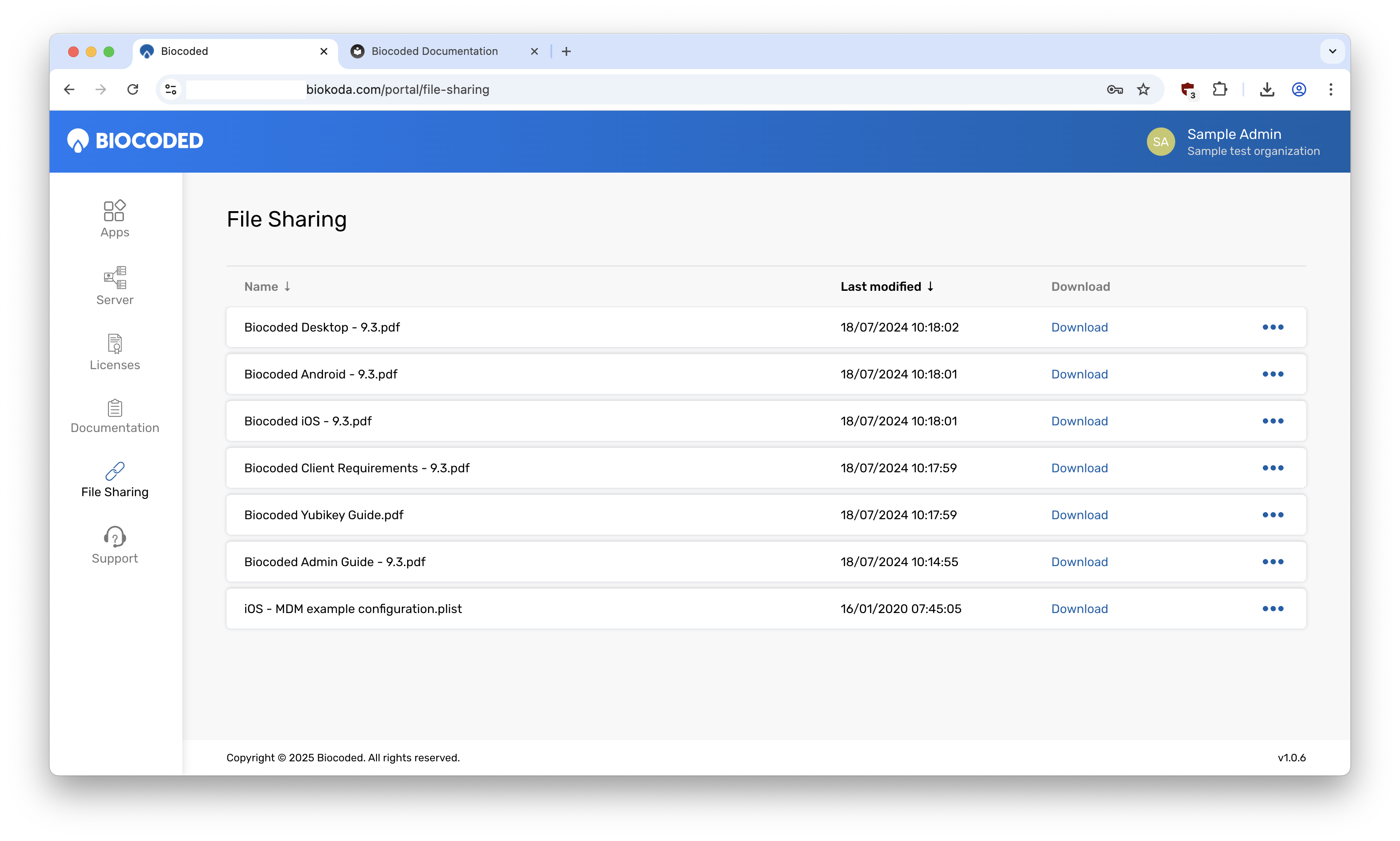
To download a version, press "Download".
Support
Go to "Support" to view support options.